
A WordPress website can boast exceptional visual branding, persuasive copywriting, and high-quality services, yet still struggle to gain meaningful visibility in organic search results.
Behind the scenes, hidden technical roadblocks—such as accidental indexation blocks, crawl budget waste, broken redirect loops, unoptimized core web vitals, or conflicting canonical tags—frequently prevent search engine spiders from discovering, rendering, and evaluating your most valuable pages.
Technical SEO establishes the robust infrastructure that ensures search engines can effortlessly crawl, index, and understand your website. While technical optimization alone cannot compensate for poor content, neglecting it guarantees that even world-class content remains invisible to prospective customers.
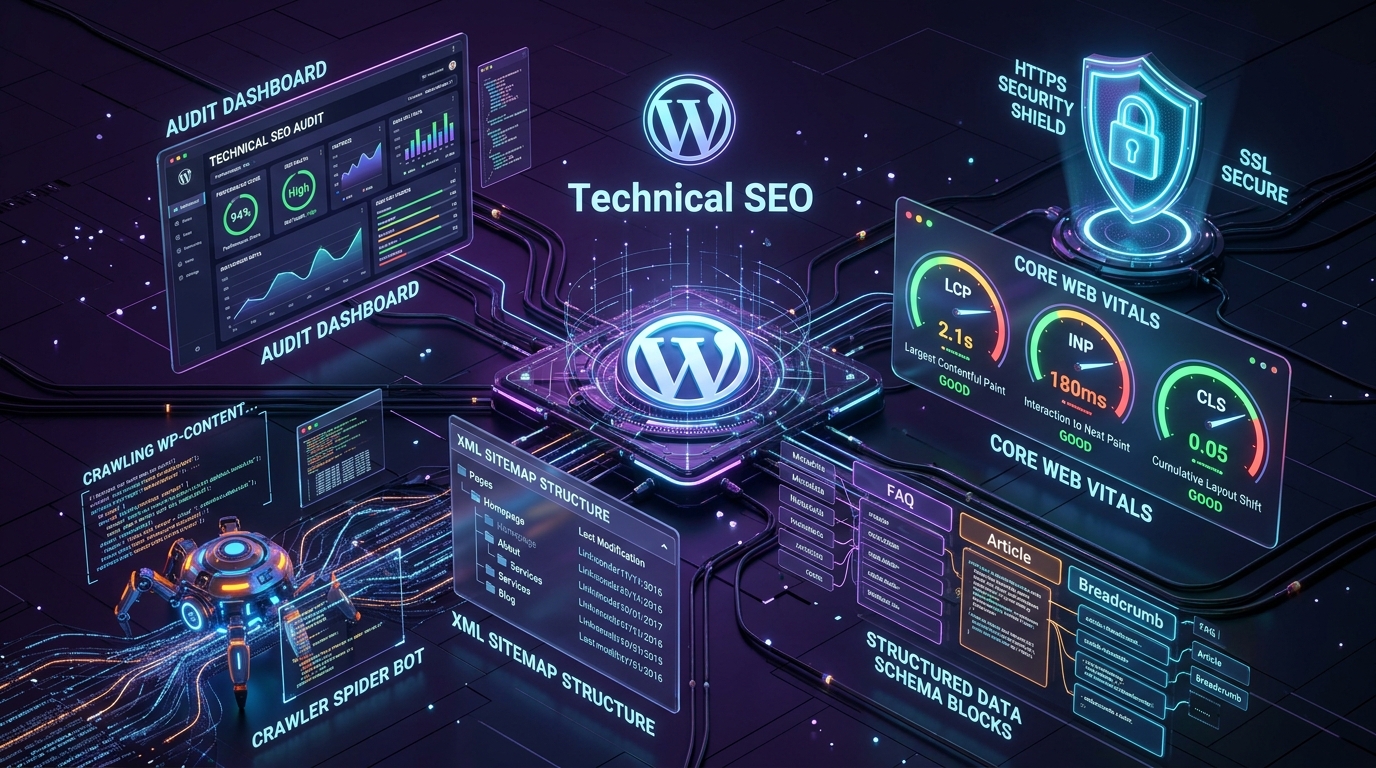
In this practical, field-tested guide, we walk through an end-to-end WordPress technical SEO audit checklist covering crawlability, indexation directives, XML sitemaps, URL architecture, canonicalization, Core Web Vitals, structured schema markup, and common WordPress configuration traps.
Technical SEO is not about toggling every checkbox in an SEO plugin or chasing 100/100 synthetic benchmark scores. It is about removing friction between search engine crawlers and your highest-value conversion journeys. Prioritize commercial landing pages, eliminate duplicate content loops, and build a fast, stable experience for human users and search bots alike.
1. What Is Technical SEO?
Technical SEO refers to the optimization of a website’s underlying code, server configuration, and information architecture so search engines can discover, fetch, render, and index pages with zero technical hindrance.
For a WordPress website, technical SEO spans twelve distinct operational pillars:
- Crawlability & Rendering: Ensuring Googlebot and Bingbot can access CSS, JavaScript, and HTML resources without restrictive firewall or server blocks.
- Indexation Directives: Controlling
noindex,index, androbots.txtinstructions to index commercial pages while shielding thin utility archives. - XML Sitemaps: Maintaining dynamic, validated sitemaps that list only 200 OK canonical URLs.
- URL & Permalinks: Establishing clean, semantic, hierarchical URL structures without query parameter bloat.
- Redirect Architecture: Implementing clean 301 redirects, eliminating redirect chains, and resolving 404 broken links.
- Canonicalization: Preventing keyword cannibalization and duplicate content across faceted filters and category archives.
- Page Speed & Core Web Vitals: Meeting Google’s real-user performance benchmarks for LCP, INP, and CLS.
- Structured Schema Markup: Injecting valid JSON-LD schemas (Organization, Article, Service, Product, BreadcrumbList, FAQ).
- Internal Link Topology: Distributing link equity logically from high-authority pages to deep service landing pages.
- Mobile Usability: Ensuring viewport compliance, tap target adequacy, and zero horizontal overflow.
- HTTPS & Site Reliability: Enforcing modern TLS encryption, resolving mixed content, and maintaining 99.9%+ server uptime.
- WordPress Ecosystem Hygiene: Resolving conflicting plugins, database overhead, and outdated PHP runtime versions.
2. Start With a WordPress SEO Audit
Before modifying core settings, installing caching tools, or altering your permalink structure, you must establish an empirical baseline. Making uncalculated changes in production without an audit risks breaking functional redirects or wiping existing search rankings.
Use the Right Diagnostic Tools
A rigorous technical audit relies on a balanced combination of search engine data, lab crawlers, and performance tools:
- Google Search Console (GSC): The gold standard for identifying Google’s indexing decisions, sitemap validation, Core Web Vitals field data, and manual actions.
- Desktop Website Crawler (Screaming Frog SEO Spider): Crawls every internal URL to reveal broken links, canonical mismatches, redirect chains, oversized images, and missing meta tags.
- PageSpeed Insights & Chrome DevTools: Delivers field (CrUX) and lab (Lighthouse) diagnostics on loading performance and rendering bottlenecks.
- Google Rich Results Test & Schema.org Validator: Verifies structured JSON-LD syntax and identifies missing required schema properties.
- WordPress Administrative Tools: Audit active plugins, permalinks, Reading settings, and server health via Tools → Site Health.
Establish a Baseline
Document your current metrics before altering settings: total indexed pages in GSC, organic landing page traffic in Google Analytics 4, sitemap status, existing 301 redirect counts, and 75th-percentile Core Web Vitals scores. This reference point allows you to measure improvements and isolate regressions immediately.
Prioritize Business-Critical Pages
Do not treat all URLs equally. A minor meta description warning on a 5-year-old author archive is trivial; a noindex tag on a core service landing page or a 3-second layout shift on an ecommerce checkout is an emergency. Focus your audit on high-converting service templates, product collections, and key pillar articles first.
3. Check Crawlability and Indexing
Search engines cannot index or rank pages they cannot discover and fetch. It is vital to understand the difference between crawling and indexing: crawling is discovering and downloading the page’s code; indexing is parsing, evaluating, and storing the page in the search engine’s database.
Review WordPress Search Engine Visibility
In your WordPress administration dashboard, navigate to Settings → Reading. Check the checkbox labeled “Discourage search engines from indexing this site”.
If this box is checked on a live production website, WordPress automatically injects a global <meta name="robots" content="noindex, nofollow"> tag into every page header and adds a crawl block to your virtual robots.txt. This is common when deploying staging sites to production and is responsible for devastating organic traffic collapses. Ensure this option is unchecked on production.
Check Page-Level Indexing Directives
Inspect your SEO plugin settings (such as Rank Math or Yoast) to ensure critical post types—such as Posts, Pages, and custom post types like Case Studies or Services—are set to Index. Conversely, thin or utility post types—such as internal media attachment pages, staging landing pages, and search result pages—should be explicitly set to Noindex to preserve crawl budget.
Review robots.txt
Inspect your live robots.txt file by visiting yourdomain.com/robots.txt. Ensure it does not block search engines from crawling CSS or JavaScript files in /wp-content/themes/ or /wp-content/plugins/. Googlebot must render modern CSS and JavaScript to evaluate mobile usability and layout shifts.
# Recommended WordPress robots.txt structure
User-agent: *
Disallow: /wp-admin/
Allow: /wp-admin/admin-ajax.php

Sitemap: https://yourdomain.com/sitemap_index.xml
Use Google Search Console URL Inspection
Input key URLs into GSC’s URL Inspection tool. Confirm:
- “URL is on Google” status.
- Coverage: Discovered – currently not indexed vs. Crawled – currently not indexed.
- User-declared canonical matches Google-selected canonical.
- Page fetch status indicates Successful with zero rendering exceptions.
4. Review Your XML Sitemap
An XML sitemap functions as a verified roadmap of your website’s canonical content. It tells search bots which URLs exist, when they were last modified, and their relative priority.
Check Whether Your Sitemap Exists and Validates
Most modern WordPress sites generate sitemaps via Rank Math (/sitemap_index.xml) or WordPress core (/wp-sitemap.xml). Verify that your sitemap:
- Returns an HTTP 200 status code with correct
application/xmlheaders. - Excludes 301 redirects, 404 error URLs, and pages with
noindextags. - Excludes empty category archives or low-value tag feeds.
- Includes accurate
<lastmod>timestamps so search engines detect fresh content updates immediately.
Submit Your Sitemap in Search Console
Submit your primary sitemap index in Google Search Console under Indexing → Sitemaps. Verify that Google processes the sitemap with a “Success” status and that the number of submitted URLs matches the expected number of published pages.
5. Audit URLs and Redirects
Clean, logical URL structures enhance user trust and improve search engine understanding. Conversely, orphaned URLs, broken links, and redirect chains bleed valuable link equity (PageRank).
Use Clean, Semantic Permalink Structures
In WordPress, navigate to Settings → Permalinks. The recommended structure for business websites and content blogs is Post name:
https://wpbunch.com/%postname%/
# Example: https://wpbunch.com/wordpress-technical-seo-checklist/
Avoid dated structures containing year, month, or day numbers (/2026/10/post-name/) for evergreen content, as they make evergreen guides look dated and create unnecessary URL migrations down the road. If you are redesigning an established site, review our website redesign checklist before altering permalinks.
Eliminate Redirect Chains and Loops
A redirect chain occurs when URL A redirects to URL B, which in turn redirects to URL C. This increases page latency and forces crawlers to spend extra crawl budget. Audit your redirects using Screaming Frog and update all 301 redirects to point directly to the final 200 OK destination.
6. Optimize Titles, Metadata, and Canonical URLs
Page titles remain one of the strongest on-page search ranking signals, while canonical tags resolve duplicate content across parameters and category structures.
Craft Compelling, Descriptive Page Titles
Keep title tags under 60 characters (approximately 580 pixels) to avoid truncation in Google SERPs. Lead with your primary target keyword, follow with a compelling value proposition, and conclude with your brand name:
Primary Keyword: Benefit or Guide Name | Brand Name
# Example: WordPress Technical SEO: Complete Audit Checklist | WP Bunch
Write Conversion-Oriented Meta Descriptions
While meta descriptions are not a direct algorithmic ranking factor, they directly determine Click-Through Rate (CTR). Aim for 145–160 characters. Clearly explain the value proposition, include secondary keywords naturally, and include a clear call to action.
Validate Canonical URLs
Ensure every page contains a self-referential canonical tag unless it is intentionally an alternate version of another master page. Confirm that your canonical tags use HTTPS and match the preferred URL format (trailing slash vs non-trailing slash).
7. Review Website Structure and Internal Links
Search engines navigate the web via links. A flat, logical site architecture ensures search bots and visitors can reach any page on your website within 3 to 4 clicks from the homepage.
Architect a Logical Topic Cluster Hierarchy
Group your content into logical topic clusters. For instance:
- Core Pillar Service: WordPress Development
- Supporting Technical Guides: Why Headless WordPress Makes Sense, How to Choose a WordPress Company, and this Technical SEO Audit Checklist.
- Proof of Execution: Relevant Client Case Studies with real quantitative performance outcomes.
Use Descriptive, Contextual Anchor Text
Avoid generic anchor text like “click here”, “read more”, or “learn more”. Instead, link using descriptive phrases that convey the destination page’s primary topic (e.g., “explore our Search Engine Optimization services“).
Implement Schema Breadcrumbs
Breadcrumb navigation helps users orient themselves within complex directories and enables Google to render elegant breadcrumb snippets directly in search result listings.
8. Check Core Web Vitals and Page Performance
Google officially incorporates Core Web Vitals into its Page Experience ranking signals. A fast, visually stable site delights visitors and reduces bounce rates.
LCP
Largest Contentful Paint measures render speed of the largest above-the-fold content block.
INP
Interaction to Next Paint measures page responsiveness to user clicks, taps, and keyboard inputs.
CLS
Cumulative Layout Shift measures unexpected layout shifts during the loading lifecycle.
High-Impact WordPress Performance Optimizations
- Modern Image Formats (WebP/AVIF): Convert uncompressed PNGs and JPEGs to modern WebP formats and ensure all
<img>tags include explicitwidthandheightattributes to eliminate layout shifts. - Critical CSS & Asset Deferral: Defer non-critical JavaScript (analytics, chat widgets) using
deferorasyncattributes so the main browser thread remains unblocked. - Server-Side Caching & Redis Object Cache: Eliminate redundant database queries on repeat visits using Redis and full-page server caching (Varnish, Nginx FastCGI).
- Font Display Swap: Use
font-display: swap;on custom web fonts to prevent invisible text during font loading (FOIT).
9. Validate Structured Data
Structured data in JSON-LD format translates human content into machine-readable entities that search engines use to generate Rich Results in Google search.
Essential schema implementations for WordPress include:
- Organization Schema: Declares company name, official logo, founding date, founders, and verified social media profiles on the homepage.
- Article / BlogPosting Schema: Provides headline, datePublished, dateModified, author (linked to Author persona), and featured image metadata on blog posts.
- Service Schema: Defines commercial service offerings, providers, areas served, and service types.
- BreadcrumbList Schema: Maps sequential navigation hierarchy for enhanced SERP presentation.
- FAQPage Schema: Formats accordion FAQ questions and answers for potential rich snippet accordion expansion.
Always test your live URLs with Google’s official Rich Results Test to ensure zero schema syntax errors or missing required fields.
10. Fix Common WordPress Technical SEO Issues
1. Accidental Search Engine Discouragement
Diagnosis: A staging site migrated to production retained the “Discourage search engines” checkbox. Fix: Navigate to Settings → Reading, uncheck the box, and re-inspect the homepage in GSC to trigger a recrawl.
2. Overlapping SEO Plugins
Diagnosis: Running multiple SEO plugins simultaneously (e.g., Yoast + Rank Math + All in One SEO) creates duplicate title tags, duplicate sitemaps, and conflicting canonical declarations. Fix: Standardize on one robust SEO suite and completely deactivate and purge conflicting plugins.
3. Tag and Category Archive Bloat
Diagnosis: Hundreds of empty or single-post tag archives create thousands of low-quality, duplicate pages that dilute domain authority. Fix: Apply noindex, follow to thin tag archives and prune unused taxonomy terms.
4. Mixed Content Over HTTP
Diagnosis: An HTTPS website attempts to load legacy images, fonts, or scripts over insecure HTTP connections, triggering browser security warnings. Fix: Run a database search-and-replace using WP-CLI or Better Search Replace to update all HTTP references to HTTPS.
11. Review Mobile Usability and Accessibility
Since Google operates on Mobile-First Indexing, Googlebot evaluates your website’s performance and structure using its mobile smartphone crawler. If a piece of content, internal link, or navigation menu is hidden on mobile, Google essentially treats it as non-existent.
- Viewport Configuration: Confirm your header contains
<meta name="viewport" content="width=device-width, initial-scale=1.0">. - Tap Target Spacing: Ensure navigation links, buttons, and form checkboxes maintain at least 48px × 48px hit areas with adequate spacing to prevent accidental mis-taps.
- Accessible Color Contrast: Maintain minimum contrast ratios of 4.5:1 for body copy and 3:1 for large headings in accordance with WCAG 2.1 AA standards.
12. Check HTTPS, Security, and Website Reliability
Search engines reward secure, resilient websites. If your website experiences downtime during crawler visits, search engines will throttle crawl rate and temporarily demote affected pages.
- SSL/TLS Configuration: Ensure your SSL certificate is auto-renewing, supports TLS 1.3, and enforces HTTP Strict Transport Security (HSTS).
- Server-Level Security: Implement Web Application Firewalls (Cloudflare, Wordfence) to block malicious scrapers and brute-force
/wp-login.phpattempts. - Automated Off-Site Backups: Maintain daily off-site backups stored securely on Amazon S3 or Google Cloud Storage, with verified monthly restore drills.
13. Create a Technical SEO Action Plan
An exhaustive audit is only valuable if its recommendations are translated into an actionable roadmap. Group your audit findings into three strategic execution tiers:
| Priority Tier | Issue Types | Execution Window |
|---|---|---|
| Tier 1: Critical (P0) | Accidental site-wide noindex, robots.txt crawl blocks on key resources, 500 server crashes, missing 301 redirects on high-traffic URLs. | Immediate (24–48 hours) |
| Tier 2: High (P1) | Failing Core Web Vitals (LCP > 4s), broken internal links, duplicate canonical tags, missing XML sitemap updates, schema syntax errors. | Next Sprint (1–2 weeks) |
| Tier 3: Moderate (P2) | Sub-optimal meta descriptions, image alt text gaps, breadcrumb refinements, CSS/JS minification, thin tag archive pruning. | Ongoing Roadmap (Monthly) |
WordPress Technical SEO Master Audit Checklist
Use this summarized master checklist during quarterly technical audits or prior to launching a redesigned WordPress website:
Crawling & Indexation
- Production “Discourage search engines” checkbox is unchecked.
- Robots.txt allows crawling of CSS, JS, and essential templates.
- Sitemap index loads with 200 OK and contains only canonical URLs.
- Sitemap submitted and verified in Google Search Console.
- Core landing pages verified via GSC URL Inspection tool.
Architecture & URLs
- Permalinks use semantic structure (
/%postname%/). - All internal links point to 200 OK final URLs (no redirect hops).
- Legacy URLs mapped with 301 permanent redirects.
- Breadcrumb navigation implemented with schema markup.
- Zero 404 broken internal links detected during site crawls.
Metadata & Content
- Every indexable page has a unique, keyword-optimized Title tag.
- Meta descriptions are compelling and under 160 characters.
- Strict single H1 heading per page with logical H2/H3 hierarchy.
- Self-referential canonical tags validated on all public pages.
- Thin tag archives set to
noindex, follow.
Performance & Core Web Vitals
- LCP passes at ≤ 2.5s on mobile CrUX field data.
- INP passes at ≤ 200ms on interactive templates.
- CLS passes at ≤ 0.1 with explicit image dimension attributes.
- Server caching and Redis Object Cache configured.
- Images compressed and served in WebP/AVIF formats.
Frequently Asked Questions
What is technical SEO in WordPress?
Technical SEO for WordPress involves optimizing the website’s underlying code, server configurations, URL structures, indexation directives, and Core Web Vitals so search engines can discover, crawl, render, and index your content without friction.
Is an SEO plugin enough to handle technical SEO?
No. While an SEO plugin like Rank Math or Yoast is invaluable for managing title tags, XML sitemaps, and basic schema, it cannot resolve hosting latency, server configuration bottlenecks, messy theme code, bloated CSS/JavaScript, or database query slowdowns. Technical SEO requires collaboration between SEO strategists and experienced WordPress developers.
How often should a business conduct a WordPress technical SEO audit?
For high-traffic business websites, full technical audits should be conducted quarterly, as well as immediately following major plugin updates, theme refactors, or website redesigns. Lightweight monitoring (tracking GSC indexation and 404 errors) should occur weekly.
Does website loading speed directly impact Google rankings?
Yes. Google incorporates Core Web Vitals (LCP, INP, CLS) into its Page Experience ranking signals. Furthermore, faster page loading directly decreases bounce rates and increases dwell time, which strongly correlates with improved organic search performance.
Why are my WordPress pages not getting indexed by Google?
Common causes include an active “Discourage search engines” setting, unintended noindex meta tags, crawl blocks in robots.txt, duplicate content canonicalized to another URL, low-quality thin content, or server connectivity errors. Inspect the affected URL in Google Search Console to pinpoint the exact status reported by Google.
Should every WordPress page be included in the XML sitemap?
No. Your XML sitemap should only contain 200 OK canonical URLs that you actively want indexed. Utility pages (cart, checkout, thank-you pages, staging landing pages), 301 redirects, 404 error URLs, and thin archives should be excluded.
Can changing permalinks harm existing search rankings?
Yes. Changing established URLs without implementing proper 1-to-1 301 redirects will cause incoming search traffic to hit 404 error pages, resulting in severe ranking and traffic drops. Always preserve existing URLs whenever possible; if URLs must change, map and test permanent 301 redirects thoroughly.
Can I perform a technical SEO audit without programming skills?
You can run automated diagnostic audits using Google Search Console, PageSpeed Insights, and Screaming Frog without coding. However, resolving discovered issues—such as server caching optimization, Core Web Vitals fixes, custom schema engineering, and redirect map implementation—typically requires an experienced WordPress developer.
Final Thoughts
Technical SEO is the indispensable foundation upon which all content marketing and link acquisition efforts depend. A website with flawless technical health ensures that every piece of content you publish has the best possible opportunity to rank, attract high-intent visitors, and drive commercial growth.
At WP Bunch, we specialize in high-performance WordPress engineering, architectural SEO audits, and custom headless implementations. We eliminate technical roadblocks so your digital platforms load instantly and dominate search rankings.
Need Help Auditing Your WordPress Website?
Explore our dedicated SEO and WordPress Development services to learn how we engineer search-friendly architecture, blazing performance, and sustainable rankings.